Google Workspace: Exporting Groups with Memberships
If your organization runs on Google Workspace, you already know that some seemingly basic administrative tasks can be surprisingly difficult. One common example is exporting a full list of Google Groups along with their members and roles.
This export is frequently required for:
Quarterly or annual access reviews
SOC 2, ISO, or other compliance audits
General security and permission audits
Migrations or directory clean-ups
Unfortunately, Google Workspace does not provide a simple “Export Groups with Members” button in the Admin Console.
In this guide, I’ll walk you through a simple, repeatable solution using Google Sheets and Google Apps Script. By the end, you’ll have a spreadsheet that automatically scans your organization’s Google Groups and exports every group, every member, and their assigned role, ready for download or sharing.
Let’s dive in.
Prerequisites
Before you begin, make sure you meet the following requirements:
You are a Google Workspace Admin
The script uses the Admin SDK, which requires admin-level permissions.
You have permission to view Groups and Group Memberships
You can access Google Sheets and Apps Script
If you’re not an admin, the script will fail to return results.
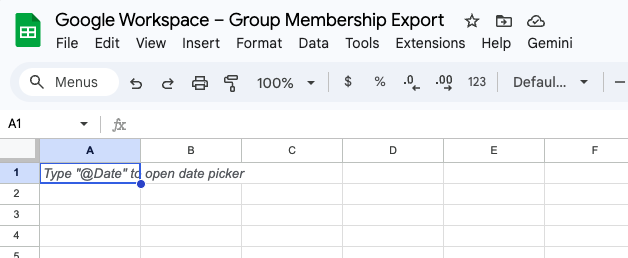
Step 1: Create a New Google Sheet
Go to Google Sheets
Create a new blank spreadsheet
(Optional) Rename the file to something like:
Google Workspace – Group Membership Export
Step 2: Open Apps Script
- Inside your spreadsheet, in the top bar click:
Extensions → Apps Script
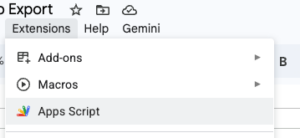
- A new Apps Script tab will open
- Delete any existing code in the editor
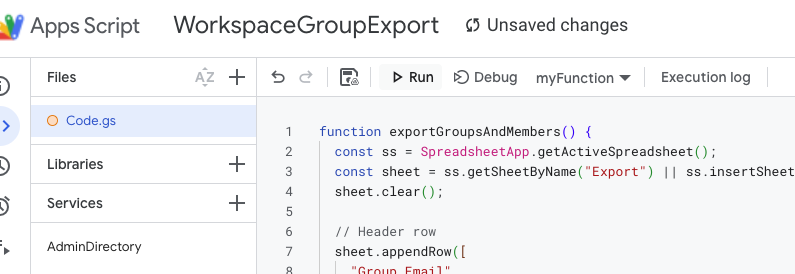
- Give your Apps Script a name, I’m using WorkspaceGroupExport for this example.
Step 3: Paste the Script
Copy and paste the following code into the editor:
Step 4: Enable Required Services (Very Important)
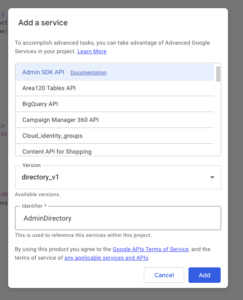
This script relies on Google’s Admin Directory API, which must be enabled manually.
Enable the Admin Directory API in Apps Script
In the Apps Script editor, click Services +
Click + Add a service
Find and select Admin SDK API
Click Add
Step 5: Run the Script
- Make sure you have saved your App Script.
Click Run
The first time you run it:
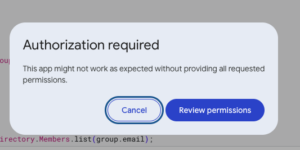
Google will prompt for authorization
Review permissions
Click Allow
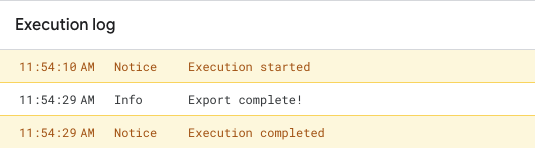
You will see the run log below your script within the Execution Log area. Once the run is completed, you should see something like this:
Step 6: View Your Export
Return to your Google Sheet
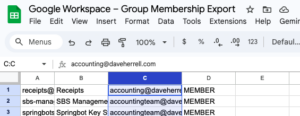
A new sheet named “Export” will appear
You’ll see one row per group-member relationship
From here you can:
Filter by group or user
Create pivot tables
Export to CSV or Excel
Share with auditors or compliance teams
Notes & Tips
Large environments may take several minutes to run
This script exports current state only
You can schedule it with a time-based trigger for recurring audits
For very large tenants, pagination may need to be added
This approach provides a clean, repeatable way to export Google Workspace group memberships without relying on third-party tools. It’s especially useful for compliance, security reviews, and general IT hygiene.
If you’re managing audits, migrations, or access reviews regularly, this script can save hours of manual work.
Hope you find this helpful!